Move Site Photos Off SD Cards Straight to Your Phone, Fast
What this fixes for you
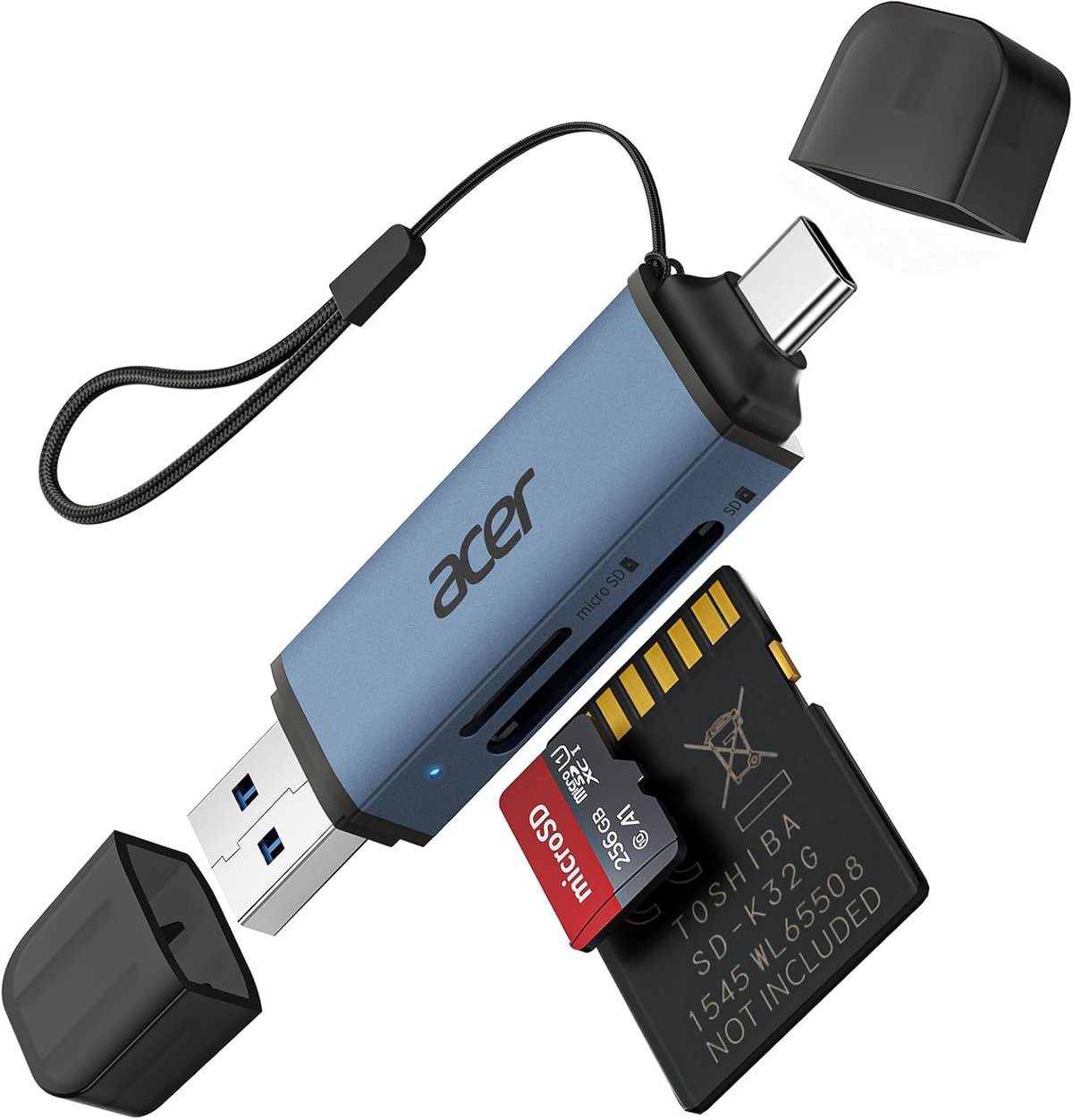
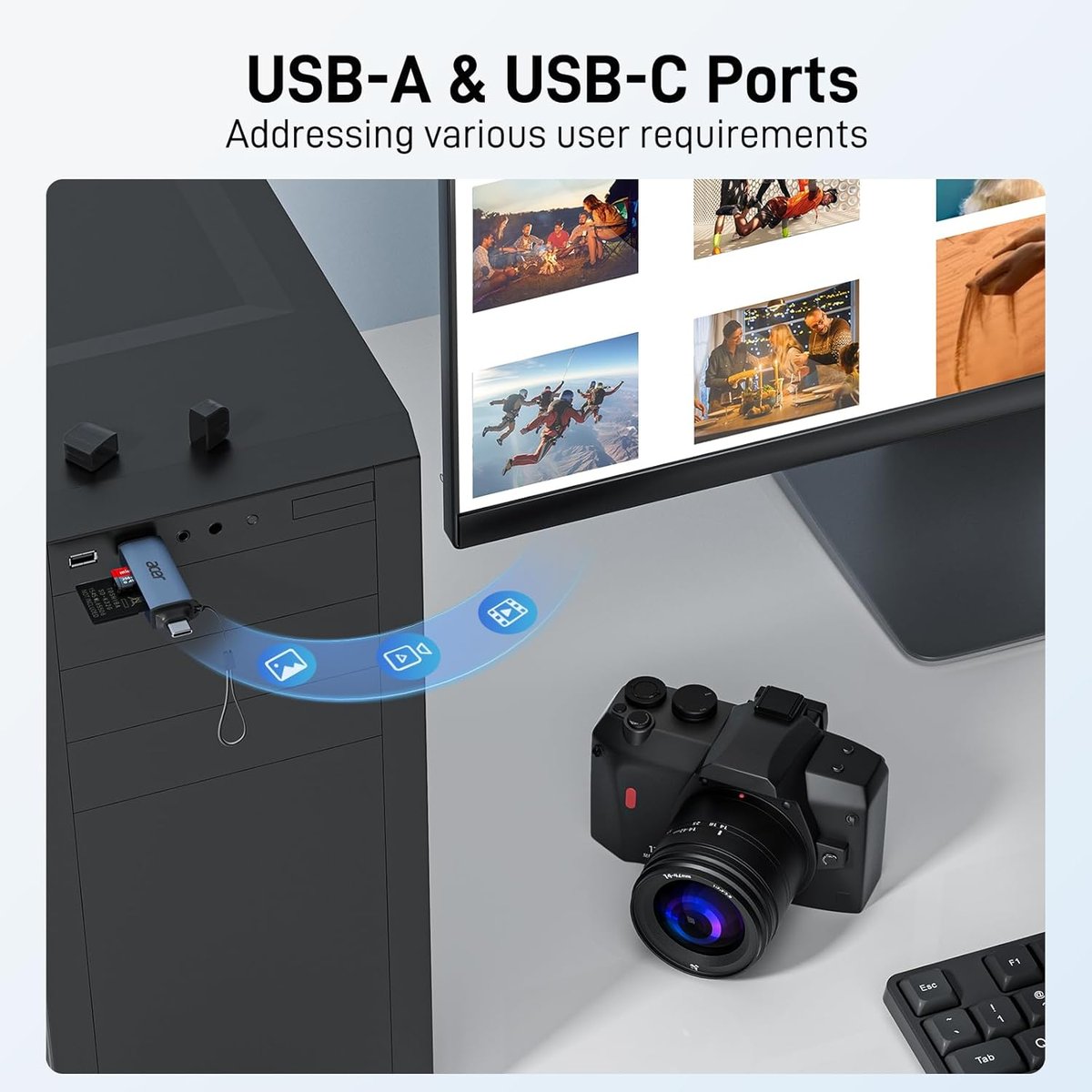
If you're a tradie snapping progress photos on your phone, downloading firmware to your vehicle diagnostic tools, or a small business owner shuffling files between devices, you've hit the same wall: getting data off SD cards without carrying a laptop everywhere. This Acer dual-slot card reader bridges that gap with both USB 3.0 and USB-C connections, meaning you can plug into your Android phone, iPhone 15 or 16, iPad, MacBook, or site laptop without hunting for adapters. It's the kind of small kit that lives in your glovebox or laptop bag and saves you fifteen minutes of mucking around when you need to move files fast.
Before first use
- Remove the reader from packaging and check both the USB-A and USB-C connectors for any protective caps or plastic film
- Inspect the card slots — there's typically one for standard SD/SDHC/SDXC and one for microSD; make sure no debris is lodged inside
- No charging required — this draws power directly from the device you plug it into
- No registration or account setup needed; it's plug-and-play
- If using with an iPhone 15/16 or iPad Pro, ensure your device is running iOS 17 or later for best compatibility with external storage
- For Android phones, confirm your device supports OTG (On-The-Go) — most phones from the last five years do
First-time setup
- Choose the correct connector for your device: flip out the USB-C end for modern phones, tablets, and MacBooks, or use the USB-A end for older laptops and PCs.
- Insert your SD card or microSD card into the appropriate slot. Cards typically click into place — don't force them if they resist.
- Plug the reader into your device. On Windows, it should appear as a removable drive in File Explorer within seconds. On Mac, it'll mount on your desktop or in Finder.
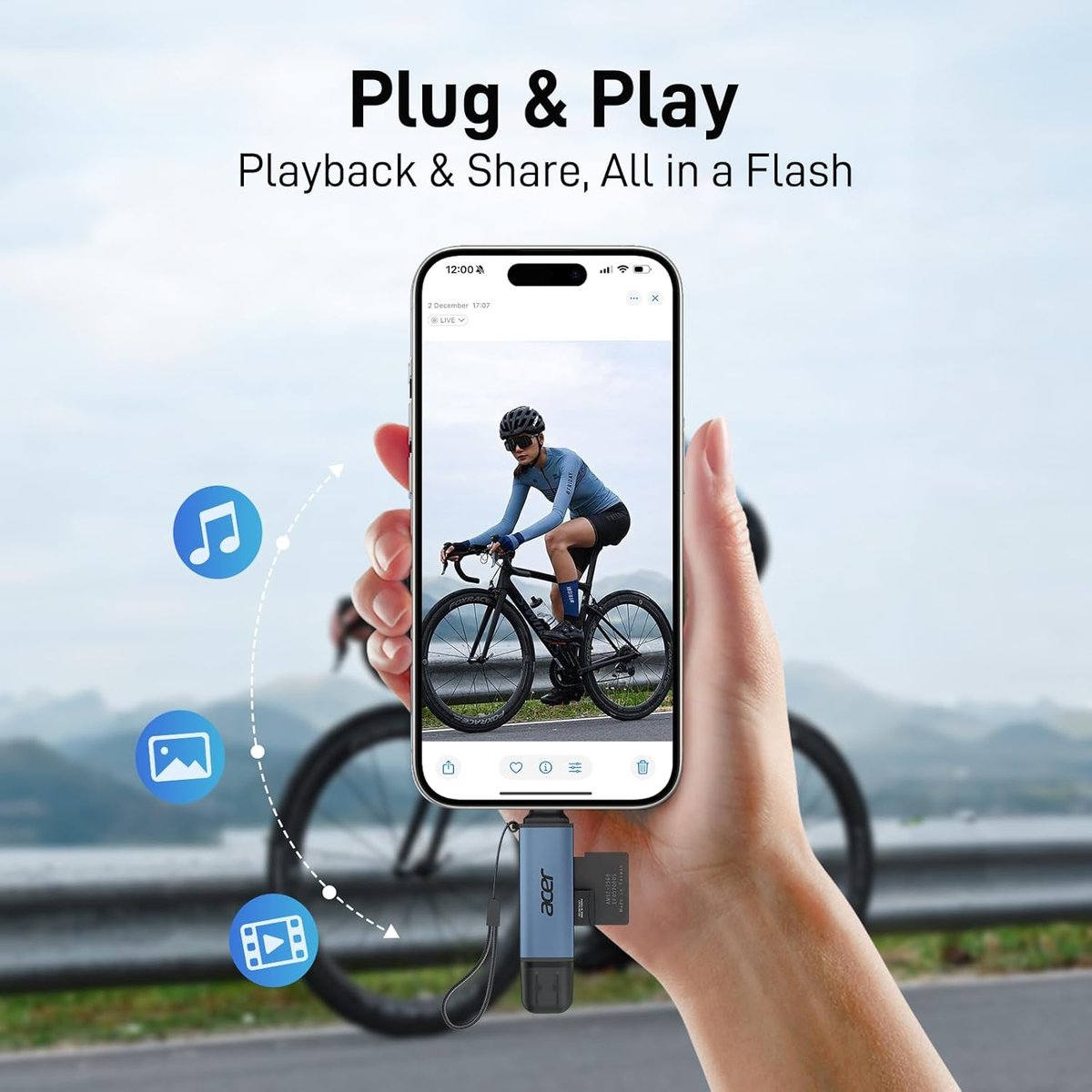
- On iPhone or iPad, open the Files app. Navigate to "Browse" and look for the external drive under "Locations."
- On Android, you may get a notification asking what to do with the USB device. Select "File Manager" or your preferred file app.
- Test the connection by copying a small file across. If transfer speeds seem slow, try a different USB port — some laptops have faster ports than others.
Daily-driver tips
- Keep it in a consistent spot: Toss it in the same pocket of your work bag or glovebox. These small readers vanish into tool bags and never resurface.
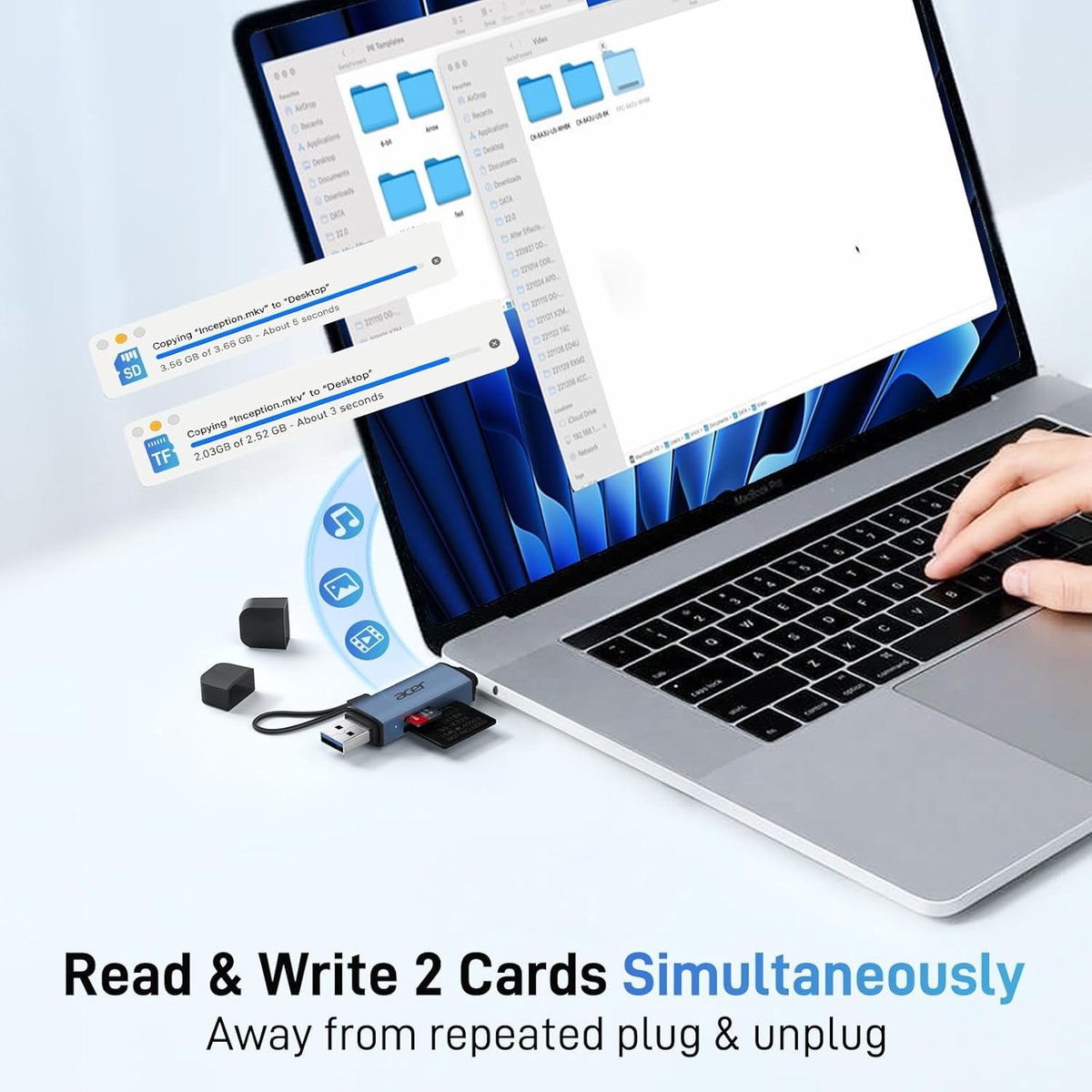
- Use both slots simultaneously: The dual-slot design lets you copy directly from a microSD to a full-size SD (or vice versa) through your device, handy for backing up dashcam footage or transferring between camera formats.
- Eject properly on computers: On Windows, use "Safely Remove Hardware." On Mac, drag the drive to the bin or hit eject. Yanking the reader mid-transfer corrupts files — a costly mistake if it's your only copy of site photos.
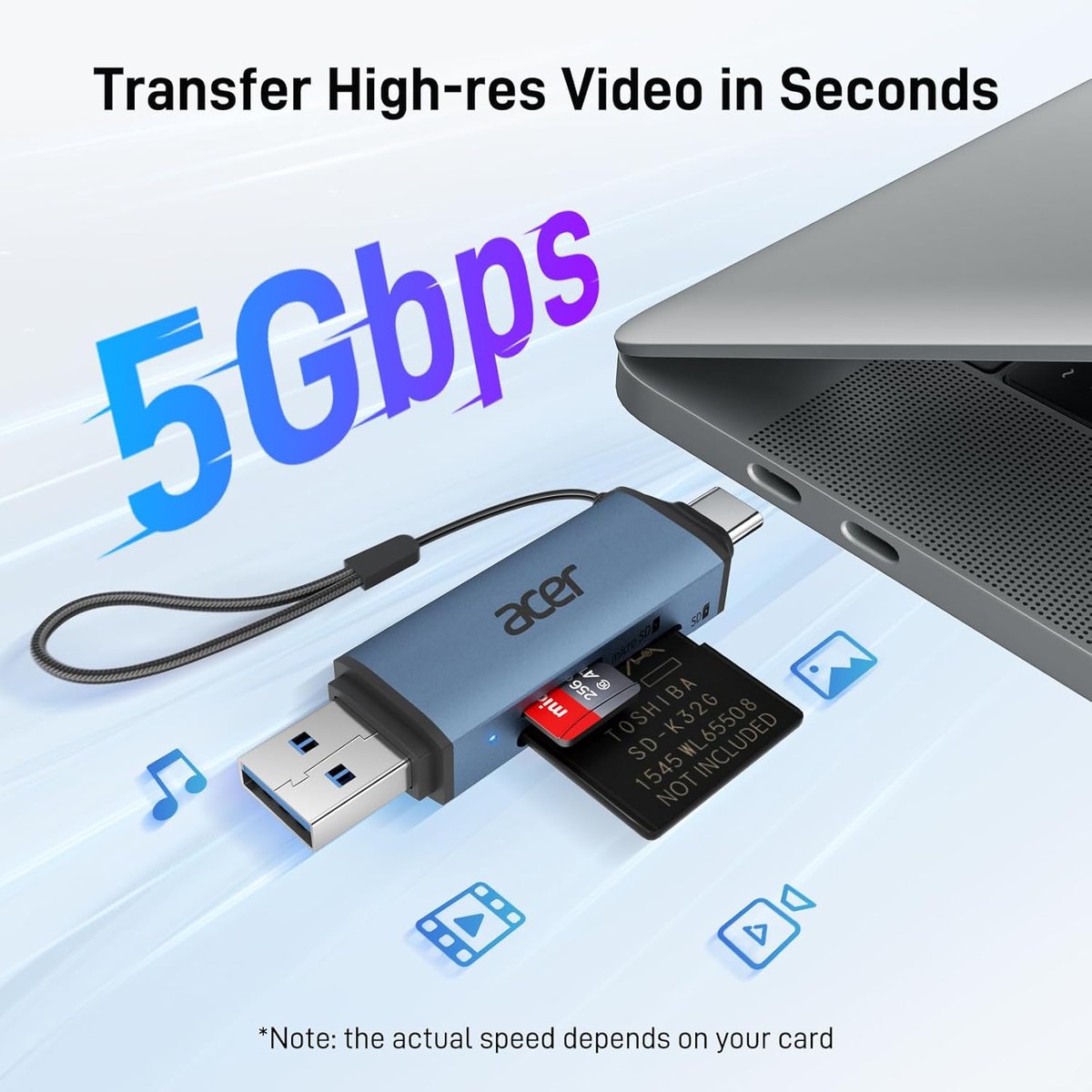
- Check USB 3.0 ports: For fastest transfers (typically 100+ MB/s with a good card), plug into a blue USB port on your laptop. USB 2.0 ports work but crawl at around 25 MB/s.
- Label your cards: When you're running multiple projects, a Brother or Dymo label on each SD card case saves confusion. The reader doesn't care which card is which — you will.
Common pitfalls
- Wrong card orientation: SD cards only go in one way. If you're forcing it, flip the card. Jamming it in backwards can damage both the card and the reader's pins.
- Phone not detecting the reader: Some budget Android phones disable OTG by default. Check Settings → Connected Devices → USB preferences, or search "OTG" in your settings.
- Slow transfers blamed on the reader: Often it's actually a slow SD card. Cards rated Class 4 or Class 10 vary massively. For quick transfers, use UHS-I or UHS-II cards.
- Using in dusty environments: On building sites, concrete dust and sawdust can work into the card slots. Keep a small ziplock bag or silicone cap over the reader when not in use.
Maintenance and longevity
There's not much to maintain here, which is the point. Periodically blow out the card slots with compressed air — the same cans you'd use for keyboard cleaning. If the USB connectors get grimy, wipe them with a dry microfibre cloth. Avoid alcohol or wet wipes directly on the metal contacts.
The most common failure point on card readers is the USB connector getting loose from repeated plugging and unplugging. Be gentle when connecting — don't yank it out at an angle. Store it somewhere it won't get crushed under heavier gear. At under $20, it's not worth babying excessively, but basic care should get you two to three years of reliable use.
When to upgrade or replace
Replace this reader if your devices stop recognising it consistently, if cards no longer click securely into the slots, or if you notice bent pins inside the card slots (use your phone torch to check). If you start working with CFexpress cards or higher-end camera formats, you'll need a dedicated reader for those — this Acer model handles SD and microSD only. For most tradies and small business owners shuffling photos, documents, and firmware files, though, this category of reader handles the job until physical wear catches up with it.